
Gaining customer trust is important for any business to sell its products and services. While there are many ways of doing this, there is no better way to gain customer confidence and faith than using content generated by already existing customers, also called user-generated content. Displaying such content on your WordPress/Shopify store can magically attract the attention of potential customers, increase engagement, and conversions, which eventually grows your business. This guide provides a rundown of how you can add Google reviews to your WordPress and Shopify stores.
What is Google Customer Reviews?
The first thing that everybody thinks of before buying a new product, shopping from a new brand, or seeking services from a new business is inquiring about the brand. This could be from family, friends, or previous customers of the brand. In the current digital age, shoppers do so by checking for ratings and reviews of the business online. According to a BrightLocal survey, more than84% of online shoppers trust customer reviews.
This isn't an exception, as your prospects also do the same. That said, Google Customer Reviews are basically feedback from previous customers about your products, services, or general customer experience. After making purchases, customers can opt-in to take a survey done through email, which asks them to rate their shopping experience.
Benefits of Google Customer Reviews
Google reviews are unbeatably the most genuine and authentic content any brand would want. This content comes with the following benefits;
- It builds a strong brand reputation.
- It strengthens customer relationships with your brand
- Increases engagement level
- Improves brands' credibility
- Improves the appearance of your website/store
- It gives your brand, products, and services authenticity
- Improves sales and conversions
Adding Google Customer Reviews to WordPress/Shopify Sites
Adding customer reviews to your online store is not straightforward as the process of asking for Google reviews. For starters, you should create and verify your Google My Business page. With your page created and verified, customers can then leave their reviews on the page and rate your products and services. You can encourage users to leave reviews through creating a google review link.
This information provides potential customers with a clear picture and understanding of your brand, products/services, and general experience based on previous customers' experiences. Google customer reviews are highly effective in building a great brand reputation and give prospects an extra urge to engage and purchase from your business.
That said, you can add Google customer reviews to your WordPress or Shopify stores in two ways. They include;
1.Using Third-Party Plugins
The first way of embedding Google customer reviews to your online store is using third-party plugins. Both WordPress and Shopify have several plugins that you can use to add Google customer reviews to your online stores. Seamless plugins to consider include Taggbox, Google Places, Tagambed, and Shopify Product Review App (which is specific for Shopify sites.)
These plugins are widely popular and very responsive platforms that aggregate user-generated content and social media posts. These plugins also come with various advanced features, such as a moderation panel that you can use to moderate content by removing objectionable and unwanted content.
Most of these plugins also provide insightful analytics, which can track general impressions and the performance of your reviews. You also enjoy 24/7 support in case of any arising challenges. That said, regardless of the plugin of your choice, follow the following steps to add Google reviews to your WordPress and Shopify sites.
- Install and Activate the Plugin
Download the plugin from the WordPress or Shopify directory or widget editor, upload the tool, and activate it to enable its functionality
- Integrate Google Reviews
While this process may vary for different plugins, the steps aren't complicated. For instance, with Taggbox;
- Create a new account or log in to an already existing account
- Click on the "Create Widget" to aggregate Google reviews
- Click on "Add social feeds."
- Choose Google as the source from the pop-up menu bar
- Select connection type that collects reviews. Options include My Places or Places. My Places lets you collect reviews from your Google My Business page, while Places allows you to collect reviews from other sources posted on Google.
- Finish up the setup, and the widget editor will be displayed on your feed
On the other hand, if you choose Google Places as your plugin, you will need a Google Places API key and a shortcode to insert Google reviews into your posts. Fortunately, full integration instructions are on the plugin's website.
- Display Google Reviews on WordPress/Shopify Site
Integrating Google reviews in the previous step enables you to collect all Google reviews and customize them to suit your needs or requirements. The next step is embedding them on your website. Similarly, while these steps slightly vary for different plugins, full instructions are provided by developers.
2.Using Third-Party Widgets
The second method of adding Google reviews to your site is using third-party widgets. Just like plugins, widgets are very responsive and user-friendly tools that allow you to collect, curate, and embed Google reviews with ease. Note that various widgets are available. However, this guide will focus on the Taggbox widget. Follow these steps;
1. Sign up or log in to the Taggbox widget. A successful login will direct you to the widget's dashboard.

2. From the dashboard, select "Add social feeds" to add Google reviews to the widget. A dialog box will appear where you can pick the source. Select Google as the source of your feeds.

3. The next pop-up, "Create Google review," will appear with two options of aggregating Google reviews. You can choose from Places, which allows you to enter a specific place where the widget aggregates the reviews. This can be a restaurant, hotel, or landmark available on Google.
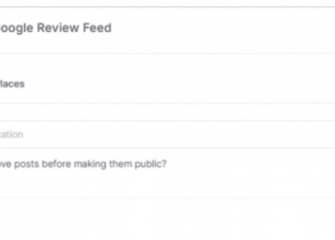
The second option is My Places, which aggregates general reviews from your GMB profile. If you choose this option, you should connect the widget to your GMB profile by clicking "Connect Google." You should then click "Create Feed" to start the aggregation process.
4. Once you've added Google reviews to the widget, the next step is embedding Google reviews to your sites. For this, follow the following steps;
- Click "Publish," located on the bottom-left to show a preview of how the content will appear.

The next step is choosing your preferred platform. For this, you can choose either WordPress or Shopify, and the widget will generate an embed code for your website.

- Curate your feed height and width according to your requirements, then select "Get Code."
- Copy the code and paste it as custom HTML (open your online store > themes menu> customize> custom content> custom HTML) on your WordPress or Shopify store. Click save to finalize the process.
Conclusion
The best way to improve the trust and credibility of your online store is by displayinguser-generated content. Fortunately, this isn't challenging, especially if you have already collected customer reviews on Google. If you have any concerns about these plugins or their integration to WordPress or Shopify stores to collect Google reviews, leave your question or comment below.
Author Bio: Michael is a tech writer with a great interest in evolving technologies. When not creating content, you'll find him listening to tech-related podcasts, hiking, or cycling.

